COGZ Update Information – Steps to Install a New VersionCOGZ Systems is continuously working on adding new features and capabilities to our maintenance software. Some of these updates include features recommended by you. As major updates are completed and the testing has been accomplished, subscribers to the yearly Update and Support Plan will be notified. Update Instructions: The update instructions below are similar for every version/incremental update release and work with any type of program installation, single-user, network, and even a Citrix or Terminal Server setup. *Please Note: The COGZ System Administrator should be the person to install this update to ensure there are no problems. If you are not the COGZ System Administrator, please provide these instructions to that individual. Please also note that COGZ Maintenance Software updates require that a qualifying version of COGZ has been running before the latest version can be installed! Check your update email for version requirements. If you are not on the most recent version, we will need to provide you with additional update(s). Check the Help/About screen in your program to see if the version you are running needs previous updates.
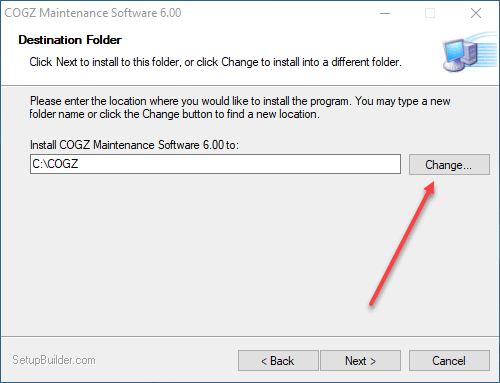
Make sure that your current drive/directory appears in the destination folder listing instead of the C:\COGZ that is the default.
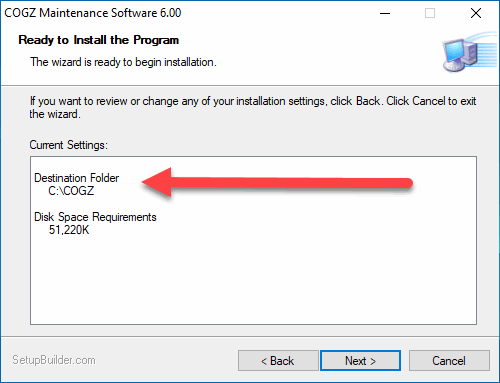
Be sure that when the current drive is selected you receive the proper message above and that you choose Next. This will update your program and data files.
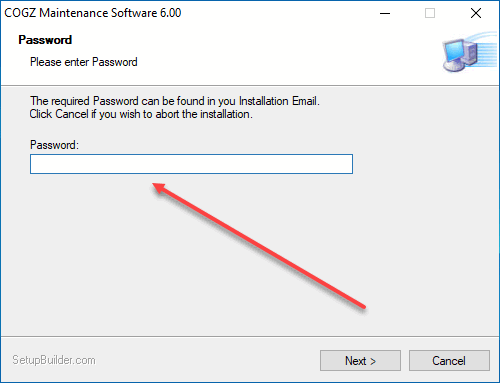
Use the password provided in the email to install the update. Do not use any other password except what has been provided to you in the update email! If you are installing multiple updates please be sure to run the program after installing each of the subsequent updates. Opening the program completes the data conversion process from the recent update.
|