COGZ Production Floor
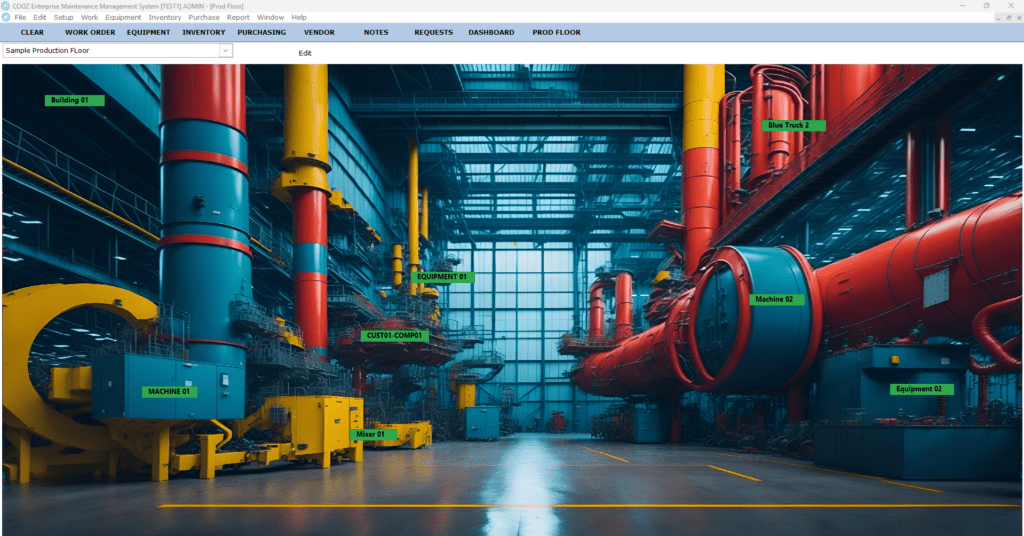
Stay on top of your production line status. COGZ Production Floor system shows a graphic display of Real Time Equipment Status on your shop floor locations. Users can set up multiple floor displays as needed. The Production Floor system will show the equipment on the floor as well as operating status shown as either Green (Operational), Red (Down), or Yellow (PM In Work).
How Does it Work?
Production Floor uses data from COGZ to determine real-time Equipment Status. Work Order status is updated on the Work Order List as work orders flow through the system. Equipment that has open work orders with a status of DN – Down/Not Operational will appear in Red, indicating that the Equipment is Down. Equipment with a status of IP- In Progress, will be displayed in yellow. Note that status needs to be changed appropriately.
Production Floor Setup
Several steps are required to set up the Production Floor system:
First, create the area image(s) of your production floor– save as jpg or bmp file in your COGZ directory or appropriate location/property sub-directory.
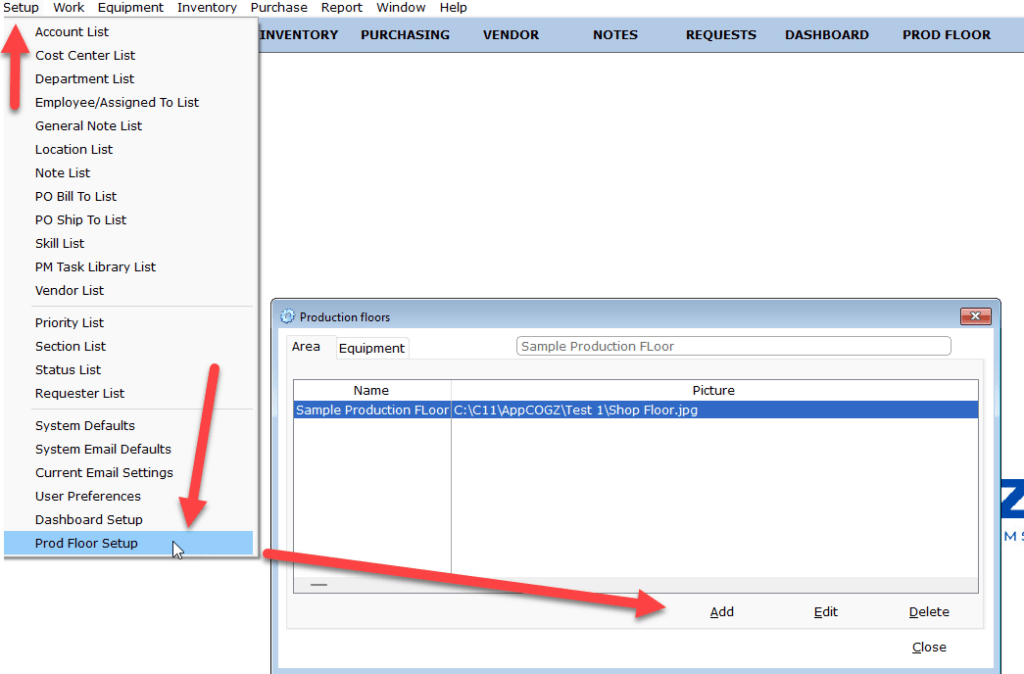
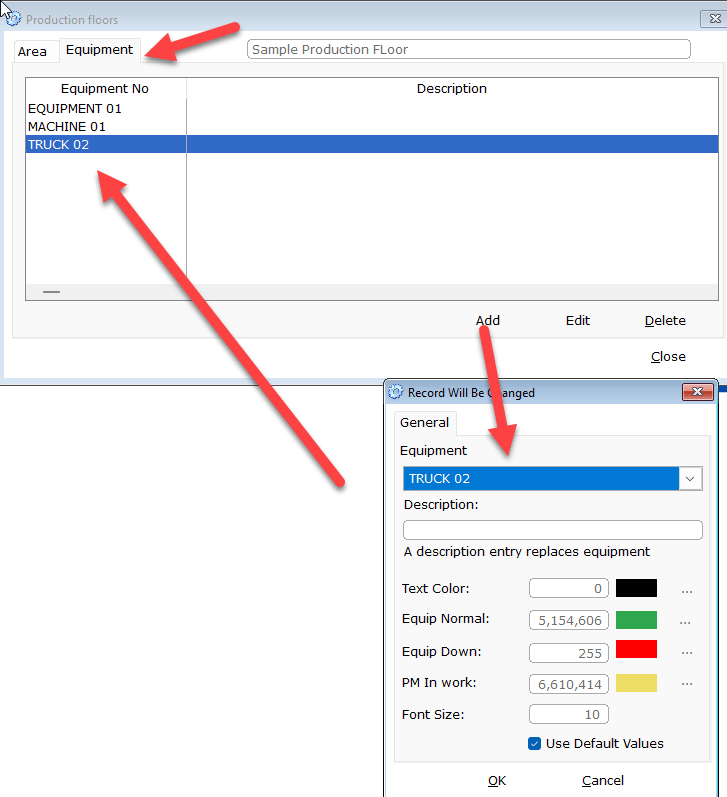
Next, Add the image(s) to COGZ under Setup →Production Floor. See steps below.
For multiple locations/floors/areas, save and add multiple entries.
Next, add your equipment to the image: (Note that the color scheme can be customized for an individual item, if needed.) If you enter a description, it will override the Equipment
- Once the setup is complete, click on Prod Floor on the Toolbar (See below)
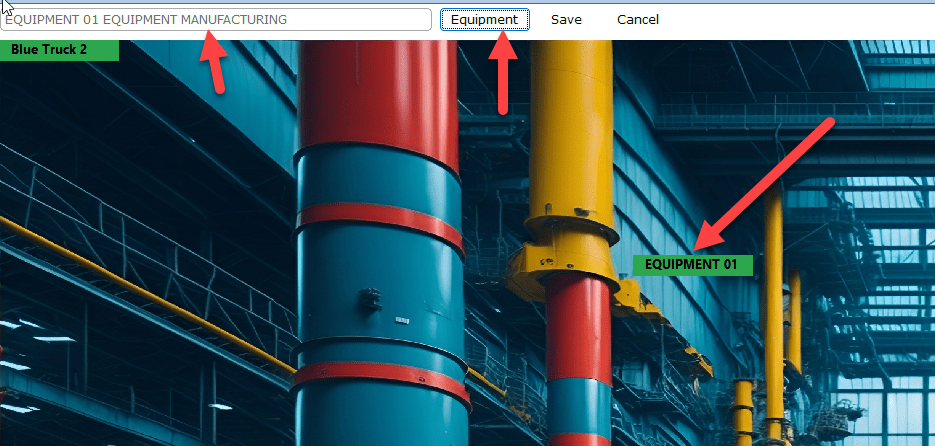
- To add Equipment labels to your production floor image, click on Edit
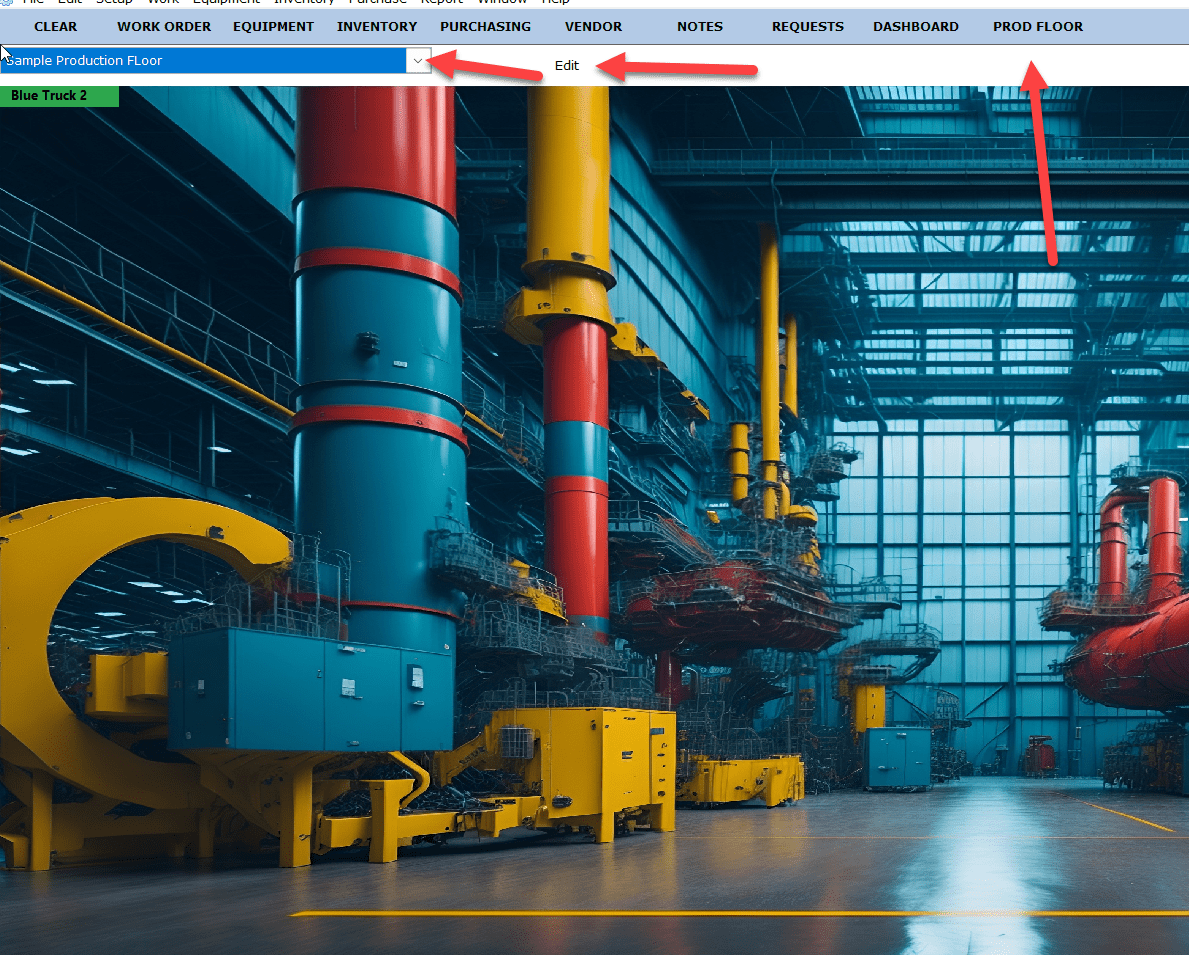
This will bring up the equipment that was added during setup in order. Click on a location to label the appropriate piece of equipment. Continue for each item. Click SAVE when done.